
Hierarchy · Chips · Boards
Hierarchy and flattening: why chips keep cells and boards go flat
Flattening replaces cell references with transformed copies of their shapes: what GDSII SREF and AREF records store, how the transform is applied, what it costs in file size, and how to flatten and check a layout in LayoutEditor.
Last edited: October 28, 2026

Flattening replaces a cell reference with copies of the shapes it displays, transformed into the coordinates of the parent cell, and then deletes the reference. In a hierarchical layout a cell stores its shapes once and every instance stores only a cell name, a position, and a transform. After flattening, the parent owns ordinary boxes, polygons, and paths with no link to the cell they came from. The visible geometry does not change; the file structure does.
The image at the top is a LayoutEditor window with 40 placements of one via cell on a 0.5 µm pitch: a 0.150 µm SKY130 via cut (black) on a met1 landing (hatched). One placement, third row from the top and sixth from the left, was flattened before the cell was corrected. The 39 placements show the corrected cell. The flattened copy kept the old, smaller landing, and the four red bands are the markers that the via.4a check below reports for it.
What a reference stores
GDSII has two reference elements. The record codes are from the Calma Stream format description (Holwerda transcription).
| Record | Code (hex) | Content |
|---|---|---|
| SREF | 0A00 | start of a single structure reference |
| AREF | 0B00 | start of an array reference |
| SNAME | 1206 | name of the referenced cell |
| STRANS | 1A01 | bit 0: reflection about the x axis; bits 13 and 14: absolute magnification and angle |
| MAG | 1B05 | magnification, 8-byte real, default 1 |
| ANGLE | 1C05 | rotation in degrees, counterclockwise, default 0 |
| COLROW | 1302 | AREF only: columns and rows, each 1 to 32,767 |
| XY | 1003 | SREF: one point (the origin); AREF: three points (origin, origin + columns × column pitch, origin + rows × row pitch) |
OASIS (SEMI P39) stores a reference in a PLACEMENT record (record ID 17, or 18 when magnification or an arbitrary angle is present) and can attach a repetition to any placement or shape, so a regular field of instances is also one record there. See GDSII in plain language and OASIS vs GDSII for the full record sets.
The size difference is measurable. The following LayoutScript writes a 100 × 100 array of a two-box via cell, flattens it, and writes both versions as GDSII and OASIS:
import os
from LayoutScript import *

d = project.newLayout().drawing                       # 1 dbu = 1 nm
via = d.currentCell; via.cellName = "VIA"
via.addBox(-75, -75, 150, 150, 68).setDatatype(44)    # cut 0.150 um
via.addBox(-130, -130, 260, 260, 68).setDatatype(20)  # met1 0.260 um
top = d.addCell().thisCell; top.cellName = "TOP"
top.addCellrefArray(via, point(0, 0), point(1000, 1000), 100, 100)
d.setCell(top)

d.saveFile("array.gds"); d.saveFile("array.oas")
d.extractCurrentCell()                                # flatten all levels, delete other cells
d.saveFile("array_flat.gds"); d.saveFile("array_flat.oas")

for f in ("array.gds", "array.oas", "array_flat.gds", "array_flat.oas"):
    print(f"{f:15s} {os.path.getsize(f):>9,d} bytes")
array.gds 336 bytes
array.oas 320 bytes
array_flat.gds 1,280,110 bytes
array_flat.oas 216,684 bytesThe hierarchical GDSII file holds two BOX records in cell VIA and one AREF in TOP. The flat file holds 20,000 BOX records in TOP, 64 bytes each (BOX, LAYER, BOXTYPE, five XY points, ENDEL). The flat OASIS file is smaller than the flat GDSII file because OASIS encodes coordinates as variable-length integers, but it is still 677 times larger than the hierarchical one. For a memory block or a fill pattern with millions of placements, this ratio decides whether a file can be opened at all.
How flattening applies the transform
For every shape of the child, a flattening tool computes the coordinates in the parent with the GDSII order of operations: reflect about the x axis if STRANS bit 0 is set, magnify, rotate counterclockwise by ANGLE, then translate by the reference point in XY. For an AREF, the reflection and rotation apply to the whole array, and each member is additionally offset by its column and row pitch.

The picture shows cell MARK, an L with corners (0, 0), (4, 0), (4, 1), (1, 1), (1, 3), and (0, 3) µm, after LayoutEditor flattened four placements of it. The test file was written by an independent GDSII writer, not by the editor, so the editor's reading of STRANS and ANGLE is part of the test. Black squares mark the four reference points, red squares mark where the child's vertex (4, 1) µm ended up:
| Placement | STRANS / ANGLE | Origin (µm) | Vertex (4, 1) µm becomes |
|---|---|---|---|
| R0 | none | (0, 0) | (4, 1) |
| R90 | ANGLE 90 | (10, 0) | (9, 4) |
| MX | reflection | (20, 0) | (24, −1) |
| MX + R90 | reflection, ANGLE 90 | (30, 0) | (31, 4) |
For the last row: reflection gives (4, −1), rotation by 90° maps (x, y) to (−y, x) and gives (1, 4), and translation adds the origin. All 24 flattened vertices matched this hand calculation. Reading the reflection after the rotation instead gives (29, −4) for the same vertex, a different position, which is why the order is part of the format and not a tool setting. The placement conventions themselves are covered in origins and quadrants.
One level or all levels
A reference can point to a cell that contains further references. Flattening one level replaces the selected reference with the contents of the referenced cell, including its references; flattening all levels repeats the step until only shapes remain. A one-level flatten of an AREF produces one SREF per array member.
The levels were counted in LayoutEditor on a three-level test: TOP holds two placements of ROW; ROW holds one met1 strap and an 8 × 1 array of VIA; VIA holds two boxes.
| Operation on TOP | Shapes | SREF | AREF | Cells in the library |
|---|---|---|---|---|
| none | 0 | 2 | 0 | TOP, ROW, VIA |
flatSelect(), first call |
2 | 0 | 2 | TOP, ROW, VIA |
flatSelect(), second call |
2 | 16 | 0 | TOP, ROW, VIA |
flatSelect(), third call |
34 | 0 | 0 | TOP, ROW, VIA |
flatAllSelect() |
34 | 0 | 0 | TOP, ROW, VIA |
extractCurrentCell() |
34 | 0 | 0 | TOP |
Flattening does not delete the child cells. After flatAllSelect(), ROW and VIA are still in the library as unreferenced top cells, and a GDSII export writes them. A tool that later picks "the" top cell of the file can pick one of them. extractCurrentCell() flattens the current cell through all levels and deletes every other cell.
Flattening in LayoutEditor
In the GUI, select the references to flatten and choose Cell → Flat.... The LayoutEditor documentation describes the dialog as a choice of how many hierarchy levels to remove, and lists the shortcuts F9 (one level) and Shift+F9 (all levels). The tool Extract Current Cell in the Cell Tools does the same as extractCurrentCell().
In LayoutScript (the Python API of LayoutEditor), the selection-based calls are cell.flatSelect() for one level and cell.flatAllSelect() for all levels; cell.flatCellrefArray() converts every array in the cell into single references, for a consumer that does not accept AREF. The script below opens a cell TOP with four placements of VIA at x = 0, 2, 4, and 6 µm, flattens only the third one, and then corrects the met1 landing inside VIA from a 0.030 µm to a 0.055 µm enclosure:
from LayoutScript import *

d = project.newLayout().drawing
d.openFile("row.gds")
top = d.findCell("TOP")
d.setCell(top)

d.point(4000, 0)                  # dbu (1 nm): the third placement
d.cSelect()                       # select the nearest cell reference
top.flatSelect()                  # one level: its shapes are now TOP's own

via = d.findCell("VIA")           # library fix: met1 enclosure 0.030 -> 0.055 um
e = via.firstElement
while e is not None:
    s, e = e.thisElement, e.nextElement
    if s.layerNum == 68 and s.getDatatype() == 20:
        via.deleteElement(s)
via.addBox(-130, -130, 260, 260, 68).setDatatype(20)

d.saveFile("row_fixed.gds")
The saved TOP holds three SREF records and two BOX records: the shapes of the flattened placement.
A flattened copy does not receive library fixes
SKY130 rule via.4a requires met1 to enclose a via by at least 0.055 µm on every side (SkyWater periphery rules). This hand-written .ledrc deck checks only that rule:
units 1e-6
mode flat

layer m1  = input(68, 20)
layer via = input(68, 44)

check "via.4a" "via.4a : met1 enclosure of via >= 0.055 um" : enc(m1, via) < 0.055 um
layout --drc via_4a.ledrc row.gds --outdir=before
layout --drc via_4a.ledrc row_fixed.gds --outdir=afterOn row.gds, before the script, the report lists errors 16: four markers per placement, one per via edge. On row_fixed.gds it lists errors 4, all at x = 4 µm:
via.4a  via.4a : met1 enclosure of via >= 0.055 um  error   4105,105 4105,-105 | 4075,75 4075,-75   30
via.4a  via.4a : met1 enclosure of via >= 0.055 um  error   4105,-105 3895,-105 | 4075,-75 3925,-75 30
via.4a  via.4a : met1 enclosure of via >= 0.055 um  error   3895,-105 3895,105 | 3925,-75 3925,75   30
via.4a  via.4a : met1 enclosure of via >= 0.055 um  error   3895,105 4105,105 | 3925,75 4075,75 30
Each line gives the met1 edge and the via edge in database units (1 nm) and the measured enclosure, 30 nm. The three placements took the corrected cell; the flattened copy is now geometry of TOP and was not touched by the edit to VIA.
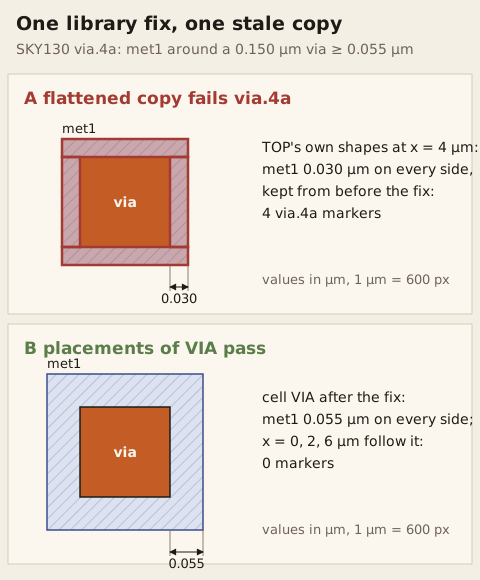
The diagram shows the two cases from the test file at the same scale. Panel A is the flattened copy: the red bands are the four marker regions between the via edges and the met1 edges. Panel B is the corrected cell as all other placements show it. The same coordinates were written to a GDS file and checked with the deck above, with four markers for A and none for B.
In a large design the stale copy has two properties that make it hard to find: it looks the same as its neighbours at normal zoom, and its shapes carry no cell name. Selecting a shape and reading its properties tells the two apart: a reference names its cell, origin, and transform; a flattened shape names only its layer.
Checking hierarchical and flat data
The .ledrc engine has two modes for hierarchical input. According to the LayoutEditor .ledrc reference, mode flat (the default) flattens the layout into the source cell before checking; mode deep checks inside each cell first and then runs a flatten pass for the neighbourhood of cell boundaries. With mode deep in the deck above, row_fixed.gds gave the same four marker locations as mode flat.
The reverse direction matters for verification of a flattened file. A check deck reports positions, not cells, so after flattening a report can no longer say "the error is in cell VIA, fix it once". Layout-versus-schematic comparison loses the mapping from layout cells to schematic subcircuits in the same way; see layout versus schematic. To prove that a flatten changed only the structure, compare the flattened cell with a copy of the hierarchical one by an XOR of every layer; LayoutScript offers drawingField.compareCellXor() for this; according to the LayoutEditor documentation, an empty result cell means that there are no differences.
When to flatten
Flattening is the right step in a few defined cases:
- One placement must differ. Flatten that placement, edit it, and record the change. If more than one placement needs the same change, make a variant cell instead: select its shapes and choose Cell → Group to turn them into a new cell with a reference.
- The consumer has no hierarchy. Some formats and tools accept only flat geometry or no arrays;
flatCellrefArray()is enough when only AREF is the problem. - Mask data preparation. Fracturing for the mask writer works on flat geometry; mask data preparation tools flatten or rebuild their own hierarchy, which does not need to match the design hierarchy. See mask fracture.
Flattening a whole chip to make one local edit costs all of the following at once: the file grows by the factor measured above, later library corrections stop reaching the design, a hierarchical check reports every copy instead of one cell, and the extracted netlist is flat.
Boards
On a printed circuit board a footprint stores pads, outline, and silkscreen once and is placed for every part, which is the same reference structure (see footprints are almost cells). Board design files keep footprints as references while routing. Fabrication output does not: one Gerber file per copper, mask, and silkscreen layer plus drill files. The Gerber format defines step-and-repeat and aperture blocks, but CAM output is usually written as flat flashes and draws per layer, so the board shop receives shapes, not footprints. A chip stream file is different: GDSII and OASIS carry references to the mask shop.
A pad widened by hand for one board, after flattening its footprint, is lost when the next board starts from the library footprint. Record which pad, by how much, and why, or create a named footprint variant.
Before you flatten
- Decide whether the change is local. If every copy needs it, edit the cell.
- Flatten the smallest scope: one placement, one level.
- Use a variant cell (Cell → Group) when several placements need the same exception.
- Record the flattened placement: cell name, position, and the edit.
- After the next library update, run the rule deck and confirm that markers appear only where you expect them.
- Before export, delete or keep the orphaned child cells on purpose, and name the top cell explicitly.
Continue exploring
-
 Cells and instances
Draw the pad once and stamp it many times. Each stamp is the same drawing in a new place, not a photocopy of the ink.
Cells and instances
Draw the pad once and stamp it many times. Each stamp is the same drawing in a new place, not a photocopy of the ink.
-
 Cell arrays and step-and-repeat: rows, columns, pitch, and AREF
An array places one cell in rows and columns at a fixed pitch and is stored as one array reference (AREF in GDSII). How a wrong step adds up across the grid, and why one record has one rotation.
Cell arrays and step-and-repeat: rows, columns, pitch, and AREF
An array places one cell in rows and columns at a fixed pitch and is stored as one array reference (AREF in GDSII). How a wrong step adds up across the grid, and why one record has one rotation.
-
 GDSII in plain language
A 1970s suitcase that still carries almost every chip drawing on Earth.
GDSII in plain language
A 1970s suitcase that still carries almost every chip drawing on Earth.
-
 OASIS vs GDSII: when GDS gets huge
OASIS (SEMI P39) can store a repeated shape as one record plus a repetition, so contact, via, and fill fields take less space than in GDSII; unique polygons do not get smaller.
OASIS vs GDSII: when GDS gets huge
OASIS (SEMI P39) can store a repeated shape as one record plus a repetition, so contact, via, and fill fields take less space than in GDSII; unique polygons do not get smaller.
-
 Layout origin and quadrants: where (0,0) sits and which way Y grows
Every cell has an origin and a Y direction. Disagree on zero or up, and every instance lands in the wrong place.
Layout origin and quadrants: where (0,0) sits and which way Y grows
Every cell has an origin and a Y direction. Disagree on zero or up, and every instance lands in the wrong place.
-
 Vias and contacts in IC layout: cut layers, enclosure, and via rows
Vias and contacts in a chip layout: the cut layers between floors, SKY130 via size, spacing and enclosure rules, via rows, and what a DRC cannot see.
Vias and contacts in IC layout: cut layers, enclosure, and via rows
Vias and contacts in a chip layout: the cut layers between floors, SKY130 via size, spacing and enclosure rules, via rows, and what a DRC cannot see.
-
 Footprints are almost cells
A footprint is drawn once and placed many times, so its pads, paste, courtyard, and pin 1 must be right in that one master.
Footprints are almost cells
A footprint is drawn once and placed many times, so its pads, paste, courtyard, and pin 1 must be right in that one master.
-
 Mask fracture in one sitting
Your polygons become the shots a mask writer can fire. The file grows. Slivers appear.
Mask fracture in one sitting
Your polygons become the shots a mask writer can fire. The file grows. Slivers appear.